Your facility's operational hours form the heartbeat of your scheduling infrastructure. They establish when your doors unlock, when class sessions can be booked on the calendar, and when coaching staff can clock into their shifts.
GoLivWell provides an intuitive weekly timetable manager supporting standard daytime hours, 24/7 continuous operation, specialized holiday adjustments (like Ramadan evening hours in Saudi Arabia and the UAE), and multi-branch inheritance.
Quick Summary: Setting Operational Hours in 5 Steps
- 1. Open Settings: Go to Business Settings and select the Operational Hours tab.
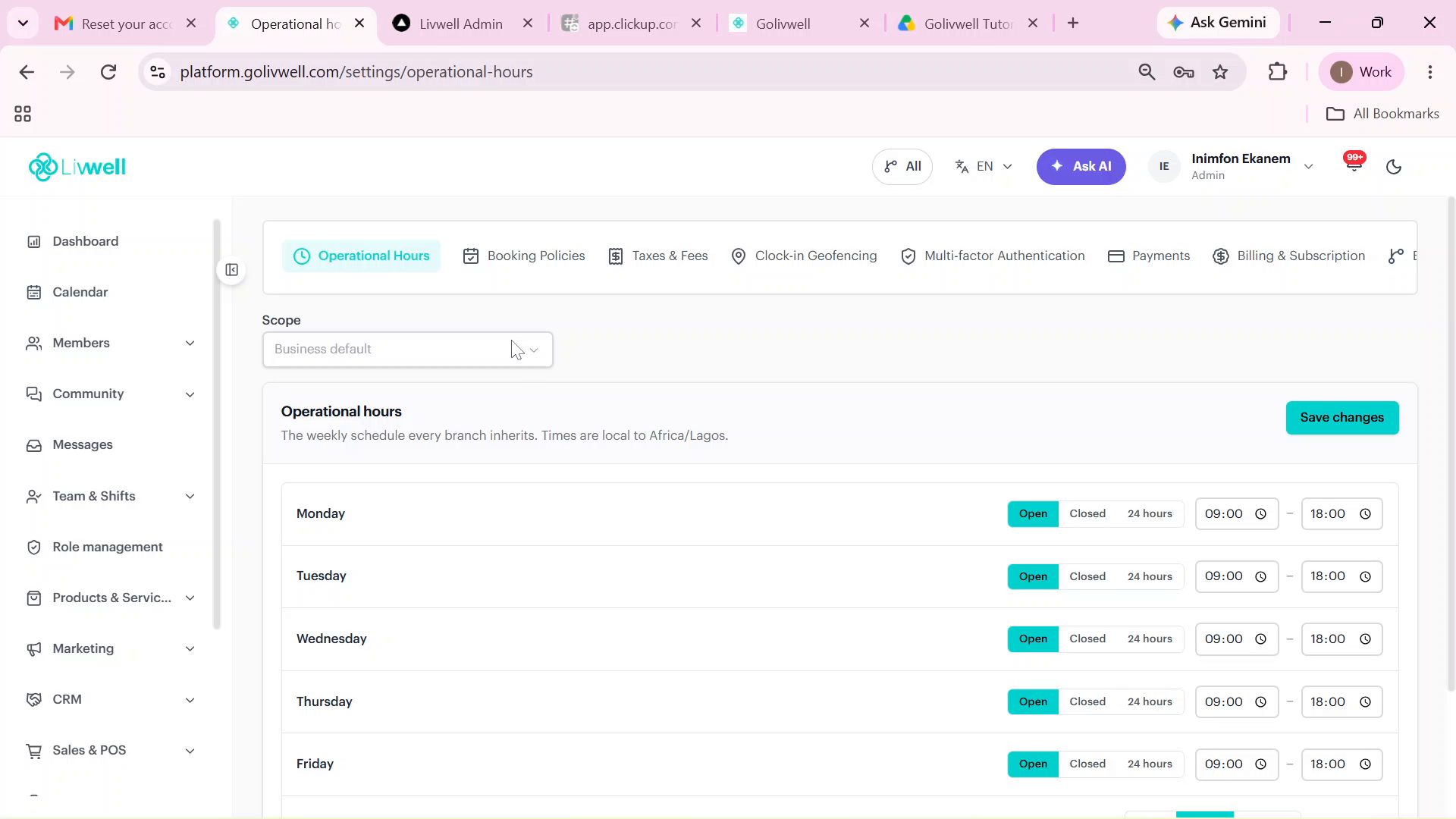
- 2. Set Scope: Select Business Default to apply across all locations, or select an individual branch.
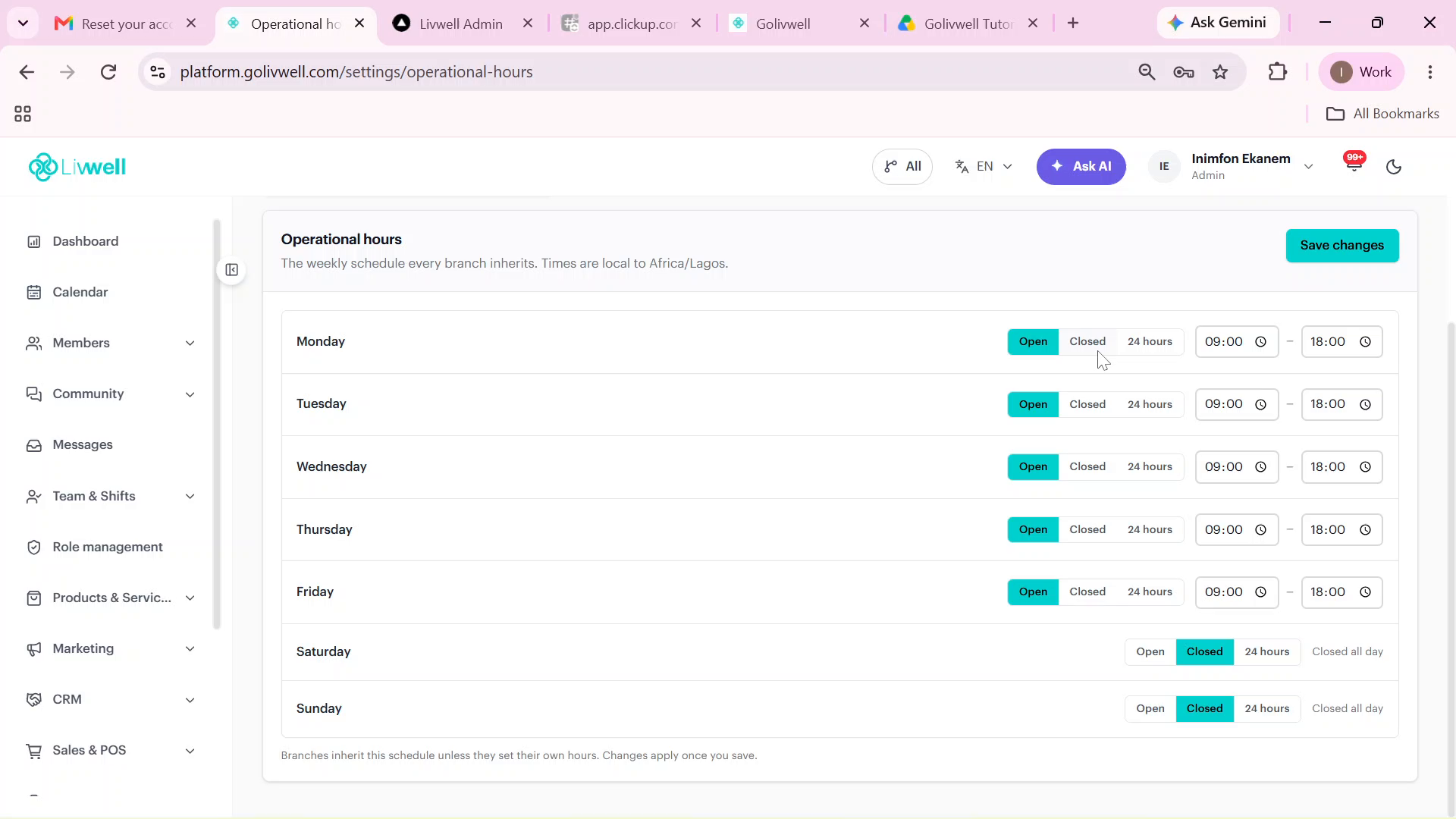
- 3. Choose Mode per Day: Toggle each day between Open, Closed, or 24 Hours.
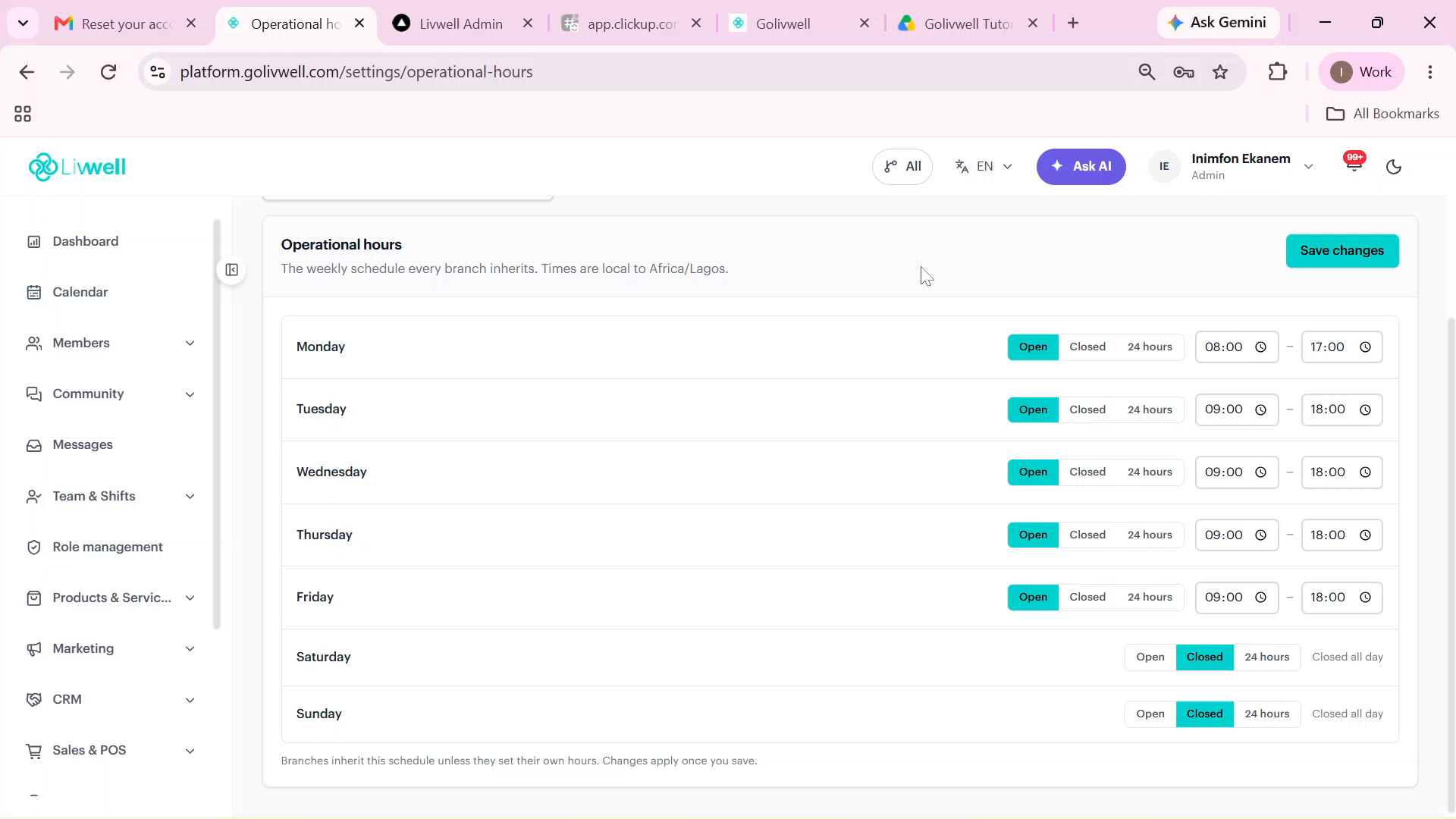
- 4. Set Hours: Use the 15-minute interval time picker for opening and closing times.
- 5. Save & Propagate: Click Save to immediately update your Master Calendar and mobile app booking windows.
Step 1: Navigate to Operational Hours Settings
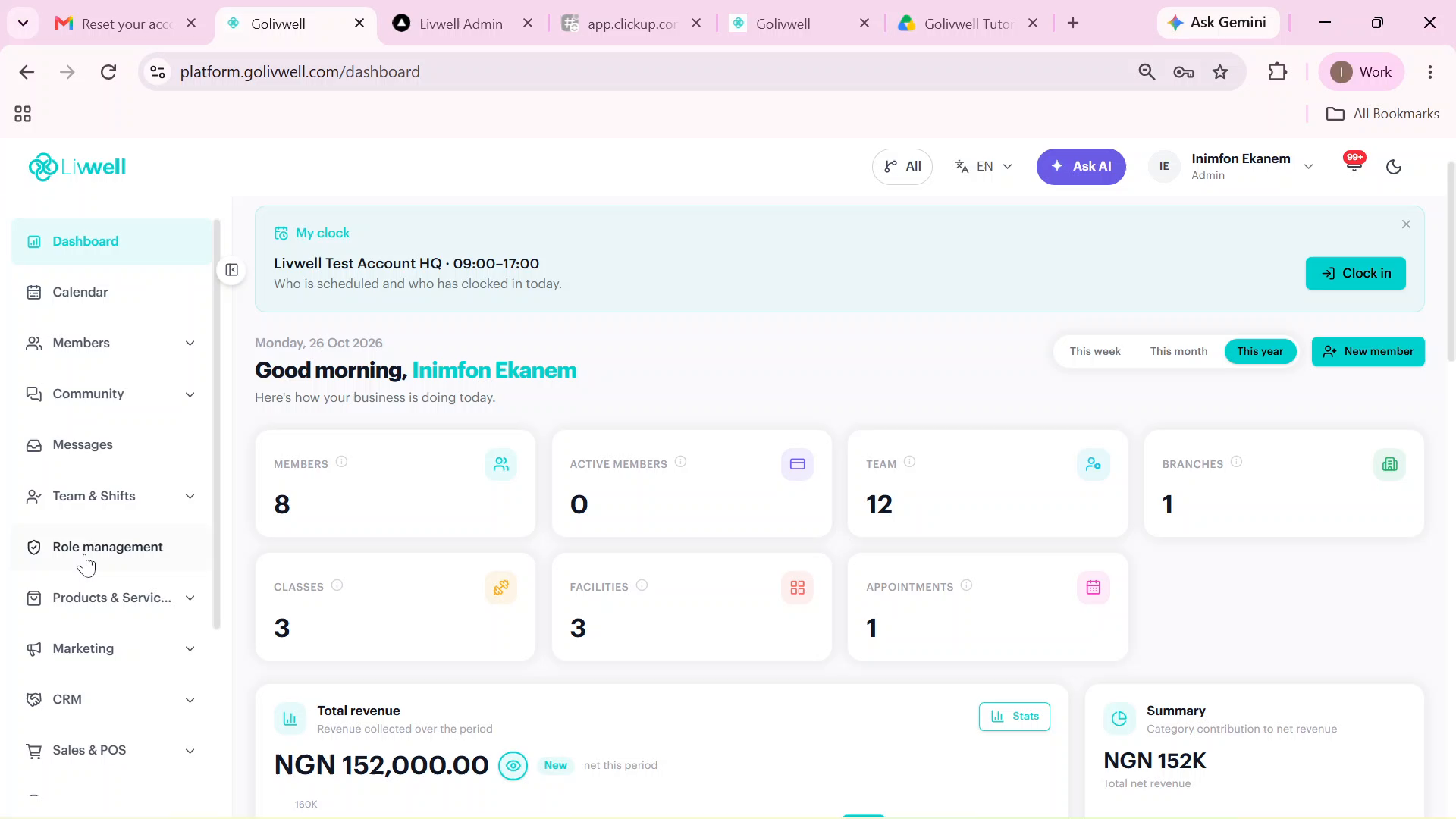
From your primary administrator dashboard, click on Settings in the left navigation sidebar and navigate to the Operational Hours section.
Step 2: Choose Global vs. Branch-Specific Scope
GoLivWell features a hierarchical configuration model:
- Business Default: The master schedule that all branch locations inherit by default.
- Branch Override: Custom schedules for specific locations with unique commercial zoning, mall opening regulations, or women-only operating windows.
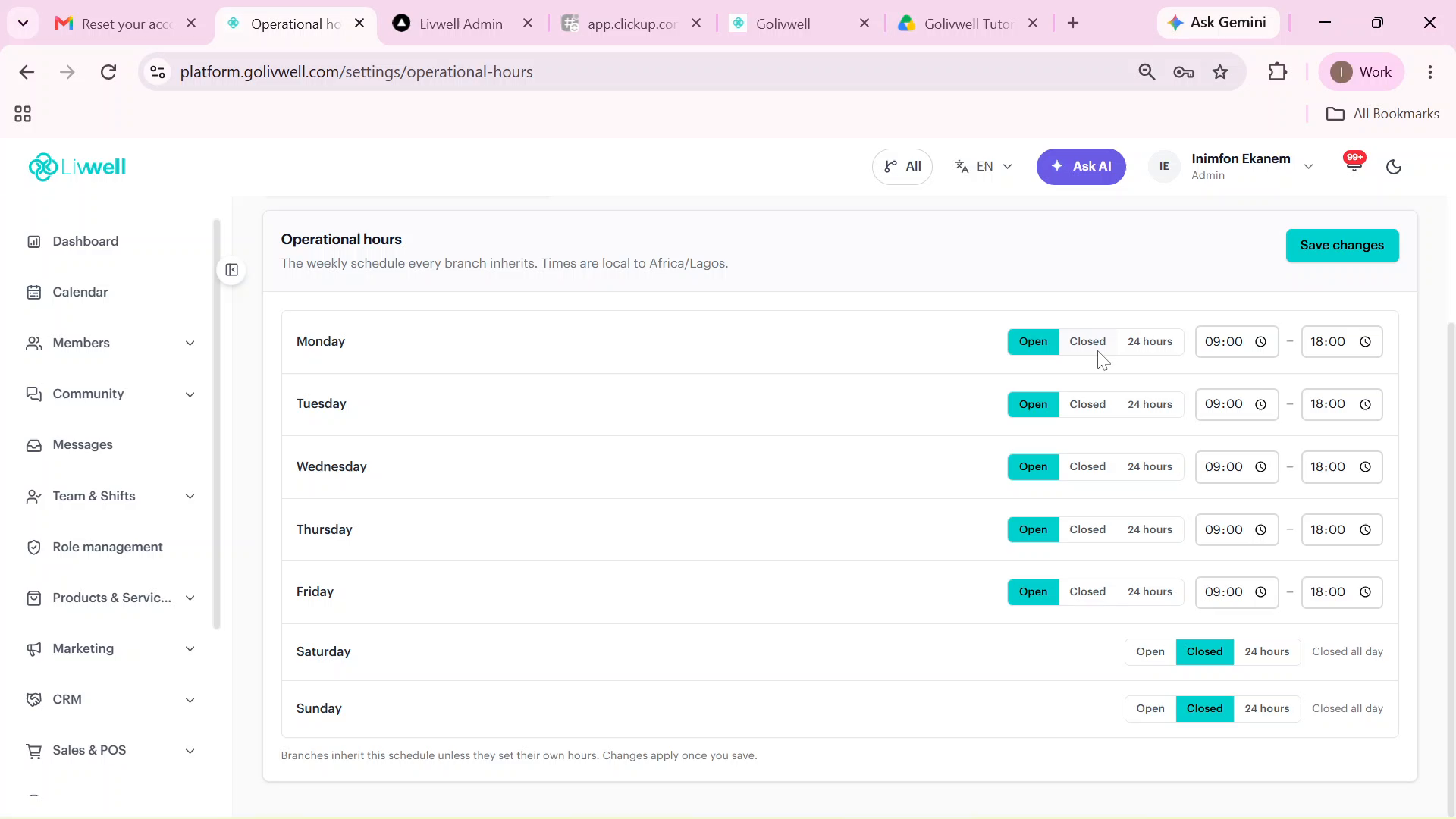
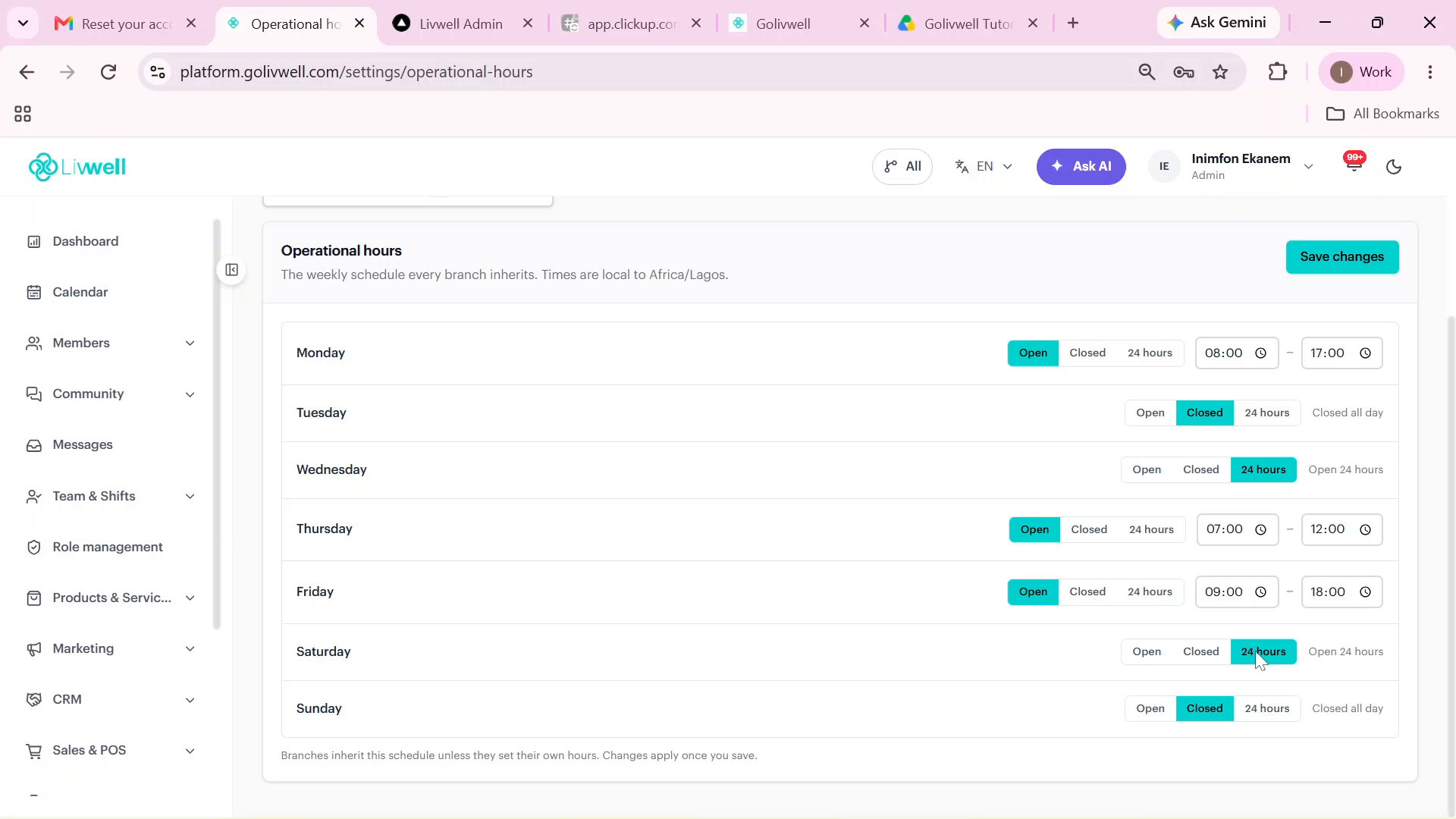
Step 3: Configure Weekly Timetable Modes
For each day of the week (Monday through Sunday), select the operating posture:
| Schedule Mode | Operating Window | Typical Facility Archetype |
|---|---|---|
| Open (Custom) | Specific start & end time (e.g. 06:00 – 22:00) | Boutique Pilates, HIIT & Yoga studios |
| 24 Hours | Continuous 00:00 – 23:59 operation | Keycard / turnstile-access 24/7 fitness clubs |
| Closed | Facility locked, bookings prohibited | Maintenance days, Friday morning prayer windows |
Step 4: Adjust Opening and Closing Time Pickers
When a day is set to Open, precise time dropdowns allow you to define the exact minute the facility unlocks.
Ramadan Split Shift Note:
During holy months such as Ramadan, studios often operate night schedules (e.g., 20:00 to 02:30 AM). GoLivWell smoothly handles overnight time spans crossing midnight without breaking calendar bookings.
Step 5: Save & Propagate Across Platform Surfaces
Click the top-right Save Changes button. Your operational timetable updates in real time across the staff dashboard, self-service member mobile app, and external web booking portals.
Next Recommended Steps
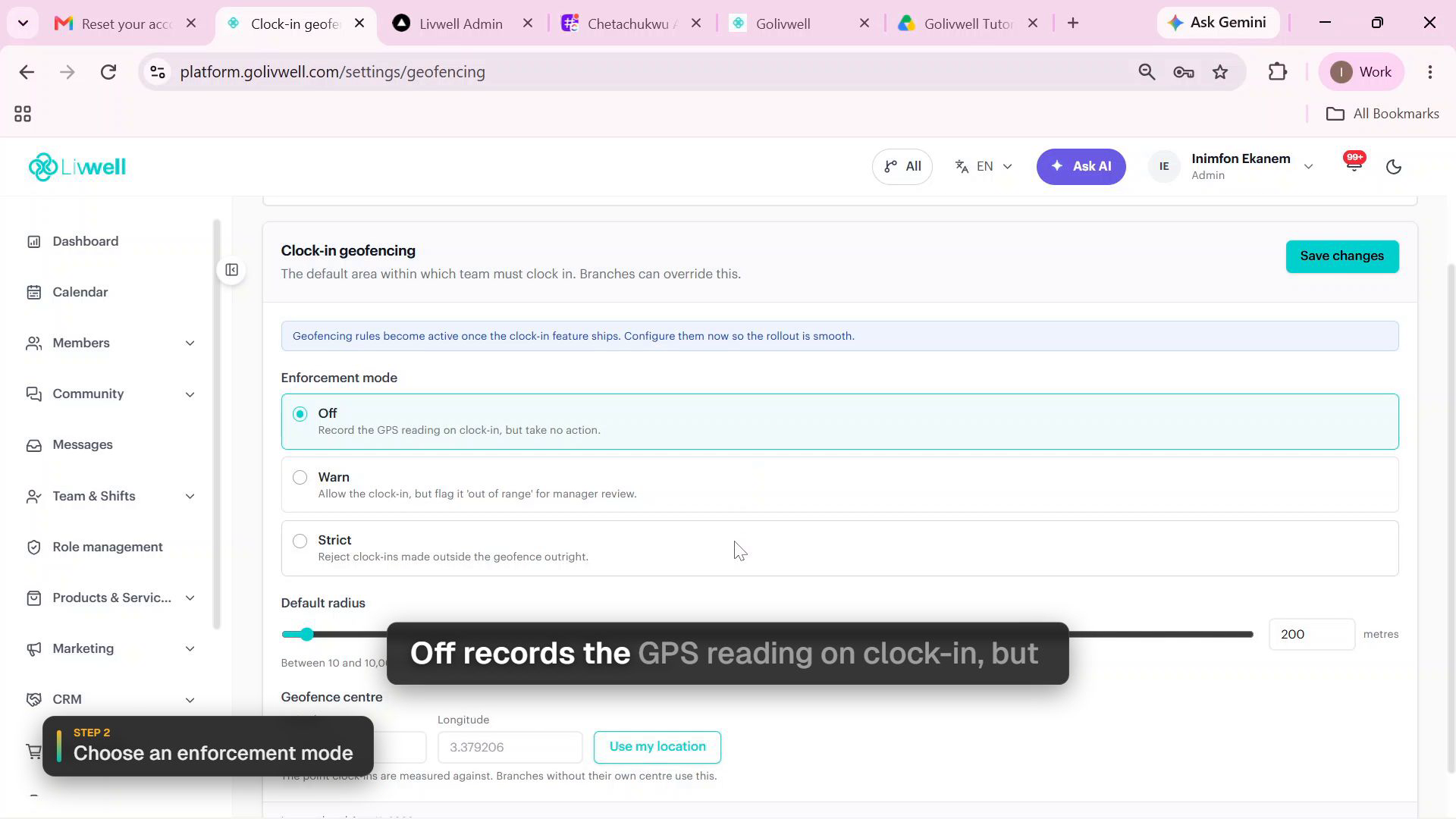
- How to Configure Geofenced Check-Ins: Ensure staff can only clock in within facility boundaries.
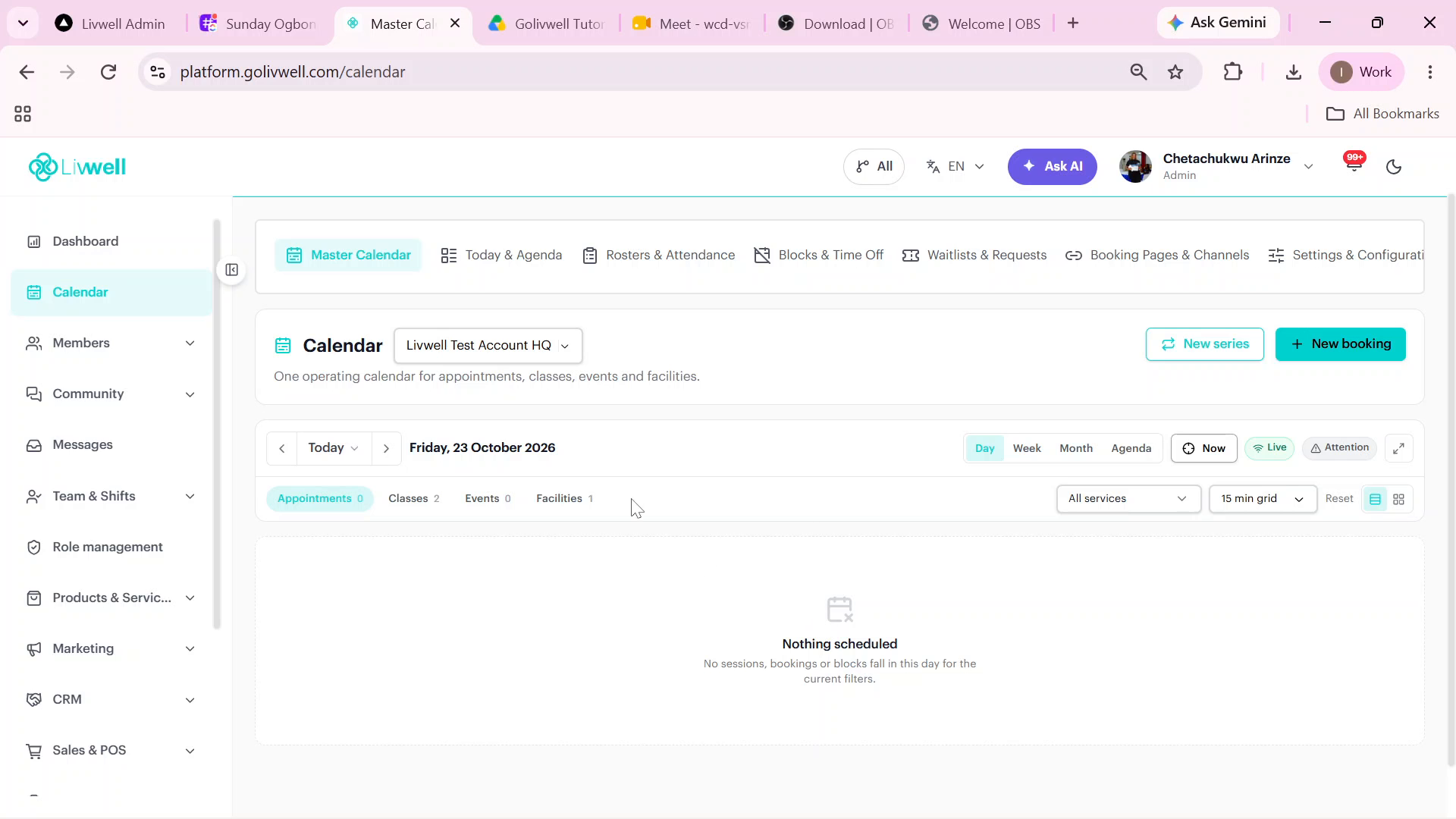
- How to Maximize Your Master Calendar: Schedule classes aligned with your newly defined operating hours.
- How to Configure Platform Settings: Configure booking cutoffs and late cancellation rules.